# Integration guide for IOIO Notifications
The IOIO platform has two types of notifications:
- Webhooks
- E-Mail Notifications
This guide contains:
- Turn On Notifications for each IOIO Service
- How to Subscribe to Webhooks
- Using the IOIO webapp
- Using the IOIO API
- How to subscribe to email notifications
- Using the IOIO webapp
- Using the IOIO API
- List of Notifications sent by the services
Prerequisites
- Endpoint which is able to receive Webhooks
- The endpoint can be configured for automatic confirmation of subscriptions using the procedure described here
- A valid email address for receiving email notifications
Turn On Notifications for each IOIO Service
Sign into the IOIO Webapp with the credentials that have been sent to you.
- If you don't have any credentials, please contact the IOIO Team at support@ioio.tv
When the Dahsboard loads click on the Notifications option from the left:
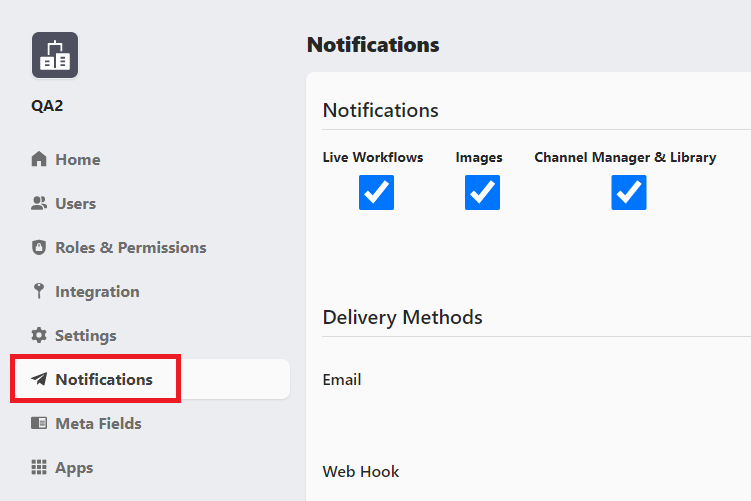
Now the Notifications section is opened and we can toggle notifications for each service which is installed.
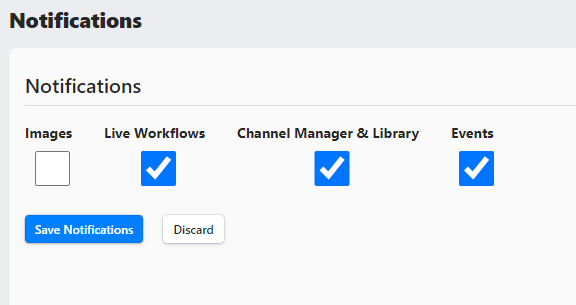
Simply click on each checkbox to either turn it On or Off and afterwards click on the Save Notifications button to have notifications turned On/Off for that particular service.
Webhooks
Subscribe to Webhooks using the IOIO Webapp
Sign into the IOIO Webapp with the credentials that have been sent to you.
When the Dahsboard loads click on the Notifications option from the left:
There are two sections in Notifications: Notifications and Delivery Methods.
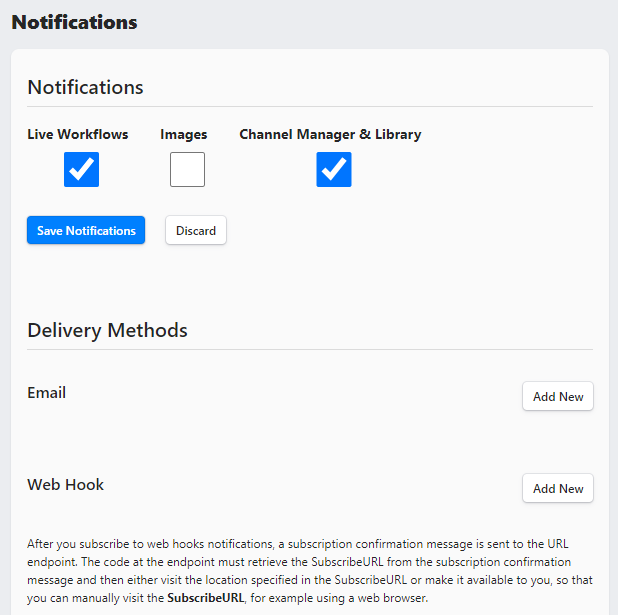
From Delivery Methods click on Add New and a field will be displayed which accepts a Web Hook Address:
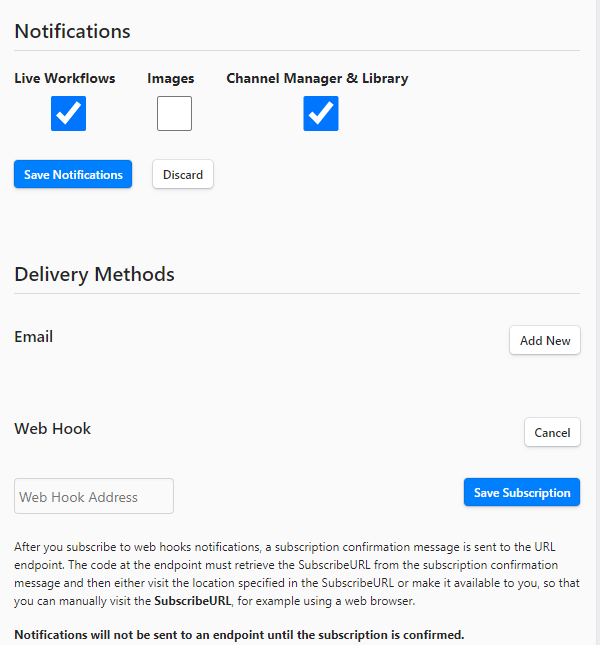
Enter the Web Hook Address on which you would like to receive notifications and click on Save Subscription
When Saved the subscription will be with a pending status, which means that it needs to be confirmed, otherwise no notifications will be received on the endpoint. The notification which has the SubscribeURL field will look like this:
POST / HTTP/1.1

Host: hristohristov.requestcatcher.com

Accept-Encoding: gzip,deflate

Connection: Keep-Alive

Content-Length: 1856

Content-Type: text/plain; charset=UTF-8

User-Agent: Amazon Simple Notification Service Agent

X-Amz-Sns-Message-Id: 5d92753e-f12e-4806-aadb-fb7d91e7fd81

X-Amz-Sns-Message-Type: SubscriptionConfirmation

X-Amz-Sns-Topic-Arn: arn:aws:sns:us-west-2:679554989631:Topic_for_organization_a272539d-dae4-4141-a34f-1a0f508d8f03


{
 "Type" : "SubscriptionConfirmation",
 "MessageId" : "5d92753e-f12e-4806-aadb-fb7d91e7fd81",
 "Token" : "2336412f37fb687f5d51e6e2425e90ccf7a37c8320aec27f5404ed56a06664f10ea6f42f7a4367aa35ffa90ed30fcecdb313d03abda39db4b3e5e15c2b729253a58f5b8df73c8e22e17492d724182f26d31f603e41c05b865575214b3a7a0711178f0892d90b75c1f327ec9cfdcab83923c3b57be41b614c88e956ea0cda9b1217c0eaae5648adb52db70c41228968d15df001ac3d39ba034baf3d8153c7e633",
 "TopicArn" : "arn:aws:sns:us-west-2:679554989631:Topic_for_organization_a272539d-dae4-4141-a34f-1a0f508d8f03",
 "Message" : "You have chosen to subscribe to the topic arn:aws:sns:us-west-2:679554989631:Topic_for_organization_a272539d-dae4-4141-a34f-1a0f508d8f03.\nTo confirm the subscription, visit the SubscribeURL included in this message.",
 "SubscribeURL" : "https://sns.us-west-2.amazonaws.com/?Action=ConfirmSubscription&TopicArn=arn:aws:sns:us-west-2:679554989631:Topic_for_organization_a272539d-dae4-4141-a34f-1a0f508d8f03&Token=2336412f37fb687f5d51e6e2425e90ccf7a37c8320aec27f5404ed56a06664f10ea6f42f7a4367aa35ffa90ed30fcecdb313d03abda39db4b3e5e15c2b729253a58f5b8df73c8e22e17492d724182f26d31f603e41c05b865575214b3a7a0711178f0892d90b75c1f327ec9cfdcab83923c3b57be41b614c88e956ea0cda9b1217c0eaae5648adb52db70c41228968d15df001ac3d39ba034baf3d8153c7e633",
 "Timestamp" : "2021-06-11T09:53:52.327Z",
 "SignatureVersion" : "1",
 "Signature" : "rtnY2GgubHBMgDl9KoZN5Ekt3IlKPTtj54FoNSRmxa7KEQCgJ3hP7bgnuu3CFTGYFvq3K/VeRYn6oT2XkvXa5AkMiWlJ9aHqpC7FmfE41AcvihEpq5udkkWVKXmlyji9bFD66V0ImDQnvIQtv6VQx9A9j1NwvI+OOxJM6pOH/NZgTq0wVyyrgYeYwiOlwD0gXoSr2jRqpmWyboFsbnxsDPnz0osLu4CkuLeejo3xMOBMAxKVFIxuufC94V+Y0yUVCMKkbvIbpnrct0oUg4c/JSnLpEG6mNURO8x5QxvTnFYAa/l95MIeG9JNMH8w2prjhhWGGJk00JKH8Ge2sj7pCw==",
 "SigningCertURL" : "https://sns.us-west-2.amazonaws.com/SimpleNotificationService-010a507c1833636cd94bdb98bd93083a.pem"
}
- Once received the SubscribeURL needs to be opened in order for the notification to be confirmed and the status of the subscription to be changed from Pending to Confirmed.
- To check the status of our subscription we go back to the Notifications section of the IOIO Webapp:
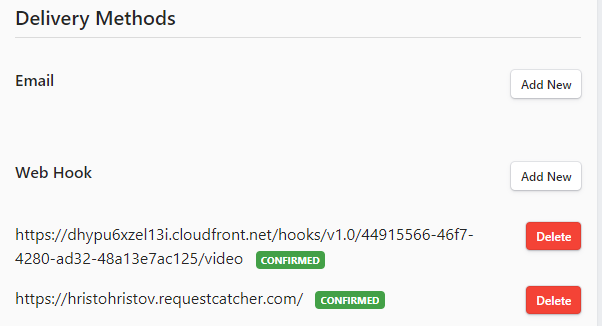
Now we can see that our notification is confirmed and notification will not be received on the given endpoint.
Subscribe to Webhooks using the IOIO API
From the ioAuth API the Store new notification subscription endpoint is required for notifications subscriptions:
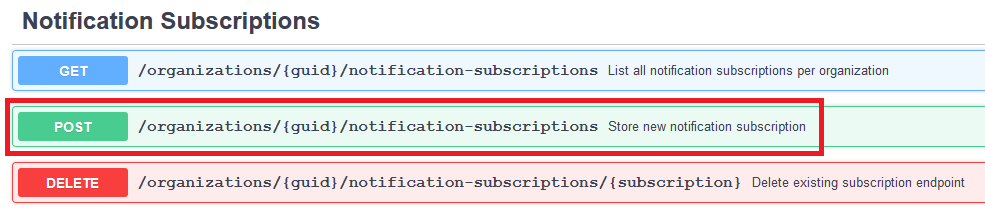
The endpoint requires an organization GUID and a payload containing the type of notification and the endpoint to which the notification to be pushed. A sample json looks like this:
{
  "endpoint": "https://ioiowebhooks.requestcatcher.com/",
  "type": "https"
}
- Once executed the subscription will be with a pending status, which means that it needs to be confirmed, otherwise no notifications will be received on the endpoint. The notification which has the SubscribeURL field will look like this:
POST / HTTP/1.1

Host: hristohristov.requestcatcher.com

Accept-Encoding: gzip,deflate

Connection: Keep-Alive

Content-Length: 1856

Content-Type: text/plain; charset=UTF-8

User-Agent: Amazon Simple Notification Service Agent

X-Amz-Sns-Message-Id: 5d92753e-f12e-4806-aadb-fb7d91e7fd81

X-Amz-Sns-Message-Type: SubscriptionConfirmation

X-Amz-Sns-Topic-Arn: arn:aws:sns:us-west-2:679554989631:Topic_for_organization_a272539d-dae4-4141-a34f-1a0f508d8f03


{
 "Type" : "SubscriptionConfirmation",
 "MessageId" : "5d92753e-f12e-4806-aadb-fb7d91e7fd81",
 "Token" : "2336412f37fb687f5d51e6e2425e90ccf7a37c8320aec27f5404ed56a06664f10ea6f42f7a4367aa35ffa90ed30fcecdb313d03abda39db4b3e5e15c2b729253a58f5b8df73c8e22e17492d724182f26d31f603e41c05b865575214b3a7a0711178f0892d90b75c1f327ec9cfdcab83923c3b57be41b614c88e956ea0cda9b1217c0eaae5648adb52db70c41228968d15df001ac3d39ba034baf3d8153c7e633",
 "TopicArn" : "arn:aws:sns:us-west-2:679554989631:Topic_for_organization_a272539d-dae4-4141-a34f-1a0f508d8f03",
 "Message" : "You have chosen to subscribe to the topic arn:aws:sns:us-west-2:679554989631:Topic_for_organization_a272539d-dae4-4141-a34f-1a0f508d8f03.\nTo confirm the subscription, visit the SubscribeURL included in this message.",
 "SubscribeURL" : "https://sns.us-west-2.amazonaws.com/?Action=ConfirmSubscription&TopicArn=arn:aws:sns:us-west-2:679554989631:Topic_for_organization_a272539d-dae4-4141-a34f-1a0f508d8f03&Token=2336412f37fb687f5d51e6e2425e90ccf7a37c8320aec27f5404ed56a06664f10ea6f42f7a4367aa35ffa90ed30fcecdb313d03abda39db4b3e5e15c2b729253a58f5b8df73c8e22e17492d724182f26d31f603e41c05b865575214b3a7a0711178f0892d90b75c1f327ec9cfdcab83923c3b57be41b614c88e956ea0cda9b1217c0eaae5648adb52db70c41228968d15df001ac3d39ba034baf3d8153c7e633",
 "Timestamp" : "2021-06-11T09:53:52.327Z",
 "SignatureVersion" : "1",
 "Signature" : "rtnY2GgubHBMgDl9KoZN5Ekt3IlKPTtj54FoNSRmxa7KEQCgJ3hP7bgnuu3CFTGYFvq3K/VeRYn6oT2XkvXa5AkMiWlJ9aHqpC7FmfE41AcvihEpq5udkkWVKXmlyji9bFD66V0ImDQnvIQtv6VQx9A9j1NwvI+OOxJM6pOH/NZgTq0wVyyrgYeYwiOlwD0gXoSr2jRqpmWyboFsbnxsDPnz0osLu4CkuLeejo3xMOBMAxKVFIxuufC94V+Y0yUVCMKkbvIbpnrct0oUg4c/JSnLpEG6mNURO8x5QxvTnFYAa/l95MIeG9JNMH8w2prjhhWGGJk00JKH8Ge2sj7pCw==",
 "SigningCertURL" : "https://sns.us-west-2.amazonaws.com/SimpleNotificationService-010a507c1833636cd94bdb98bd93083a.pem"
}
- Once received the SubscribeURL needs to be opened in order for the notification to be confirmed and the status of the subscription to be changed from Pending to Confirmed.
- To check the status of our subscription we use the List all notification subscriptions per organization endpoint:
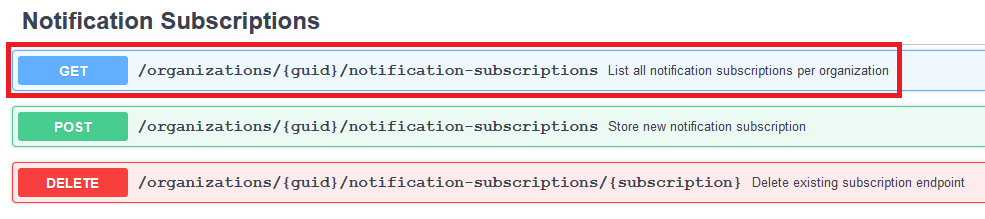
The endpoint requires the organization GUID in order to display all subscriptions in the given organization.

As we can see our notification is with a status PendingConfirmation. Now we need to open the SubscribeURL so that we can confirm the subscription.

Now we can see that our notification is confirmed and notification will not be received on the given endpoint.
E-Mail Notifications
Subscribe to Email using the IOIO Webapp
Sign into the IOIO Webapp with the credentials that have been sent to you.
When the Dahsboard loads click on the Notifications option from the left:
There are two sections in Notifications: Notifications and Delivery Methods.
From Delivery Methods under Email click on Add New and a field will be displayed which accepts an email Address:
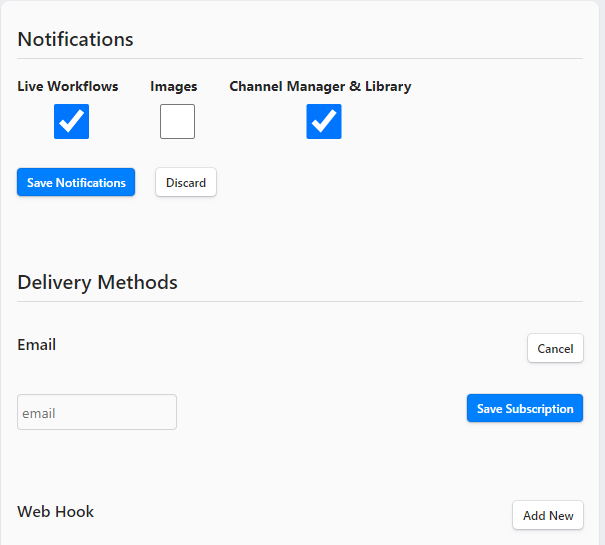
Enter the Email Address on which you would like to receive notifications and click on Save Subscription
When Saved the subscription will be with a pending status, which means that it needs to be confirmed, otherwise no notifications will be received on the endpoint. The confirmation email should look like this:
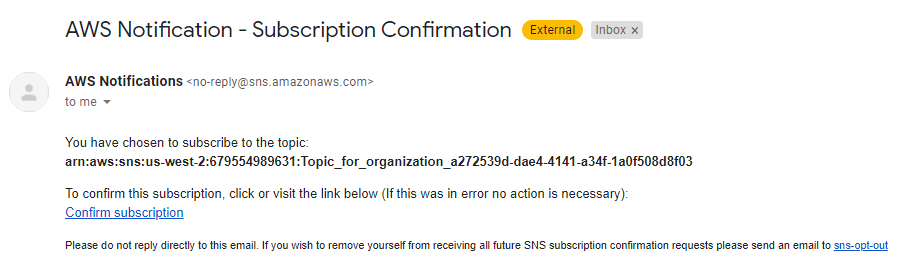
Simply click on the Confirm subscription hyperlink and the subscription will be confirmed.
Subscribe to email notifications using the IOIO APP
From the ioAuth API the Store new notification subscription endpoint is required for notifications subscriptions:
The endpoint requires an organization GUID and a payload containing the type of notification and the endpoint to which the notification to be pushed. A sample json looks like this:
{
  "endpoint": "notifications@ioio.tv",
  "type": "email"
}
- Once executed the subscription will be with a pending status, which means that it needs to be confirmed, otherwise no notifications will be received on the endpoint. The confirmation email should look like this:
Simply click on the Confirm subscription hyperlink and the subscription will be confirmed.
Notification types per service - VOD/Broker
VOD/Broker Service Notifications
- Source ingest:
{
    "guid": ...,
    "startTime": ...,
    "srcFile": ...,
    "status": ...,
    "originalFileName": ...,
    "sourcePath": ...,
}
- Source encoding:
{
    "guid": ...,
    "startTime": ...,
    "srcFile": ...,
    "status": ...,
    "originalFileName": ...,
    "sourcePath": ...,
}
- Source encoding with progress:
{
    "guid": ...,
    "startTime": ...,
    "srcFile": ...,
    "status": ...,
    "originalFileName": ...,
    "sourcePath": ...,
    "mediaConvertJobProgress": ...,
}
- Source complete:
{
    "guid": ...,
    "startTime": ...,
    "srcFile": ...,
    "status": ...,
    "originalFileName": ...,
    "sourcePath": ...,
    "endTime": ...,
}
- Source encode later:
{
    "guid": ...,
    "startTime": ...,
    "srcFile": ...,
    "status": ...,
    "originalFileName": ...,
    "sourcePath": ...,
}
- Captions success:
{
    "guid": ...,
    "file": ...,
    "status": ...,
    "source_guid": ...,
    "captions": ...,
    "subject": ...,
}
- Captions fail:
{
    "captions": ...,
    "msg": ...,
        "file": ...,
        "error": ...,
        "status": ...,
    },
    "subject": ...,
}
- Source Puller is running:
{
    "bucket": ...,
    "guid": ...,
    "objectKey": ...,
    "sourcePuller": ...,
    "withSourceMeta": ...,
    "workflowStatus": ...,
}
- Source Puller is complete:
{
    "bucket": ...,
    "guid": ...,
    "objectKey": ...,
    "sourcePuller": ...,
    "withSourceMeta": ...,
    "workflowStatus": ...,
}
- Translation Workflow:
was submitted:
is running:
completed:
completed with errors:
failed:
was stopped:
is stopped:
{
   "translationJob": ...,
   "jobStatus": ...,
   "jobId": ...,
   "batchGuid": ...,
   "startTime": ...,
   "captionsGuid": ...,
   "captionFileGuid": ...,
   "sourceLang": ...,
   "targetLang": ...,
   "translationJobs": ...,
}
- Clipping workflow:
has started:
completed:
progress update:
{
    "sourceClipping": ...,
    "guid": ...,
    "parentGuid": ...,
    "clips": ...,
    "startTime": ...,
    "srcFile": ...,
    "status": ...,
    "originalFileName": ...,
    "sourcePath": ...,
    "endTime": ...,
    "metaGuid": ...,
    "mediaConvertJobProgress": ...,
}
Notification types per service - Live
Live Service Notifications Notifications for Live are related to the Workflows and Alerts when a workflow is running.
- Alert cleared
- Alert set
Workflow Notifications For Workflow Notifications the following payload is returned:
{
  "message": "Workflow Scheduled Link is provisioning",
  "status": "PROVISIONING",
  "resourceId": "ae972f28-5b7b-46eb-8934-a684e63a308c",
  "resource": "channel"
}
With the Status being one of the following:
- Workflow PROVISIONING
- Workflow STARTING
- Workflow RUNNING
- Workflow STOPPING
- Workflow DELETING
- Workflow DONE
- Workflow START_FAILED
- Workflow STOP_FAILED